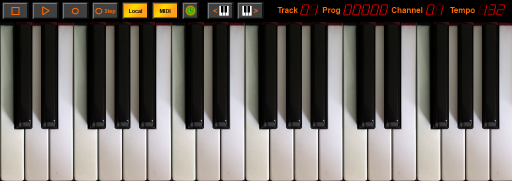
Virtual Synth Keyboard
The Virtual Synth Keyboard simulates a General Midi/GS synthesizer and may be used to playback and record music.
Use the Virtual Synth Keyboard just like a real piano, organ or electronic keyboard. Like a real keyboard, the Virtual Synth handles polyphony and up to 11 notes may be held down at the same time.
Of course, a real keyboard has many more keys than what can be shown on the
display, so use the Keyboard Down
 and Keyboard Up
 buttons to move the display
along the length of a full sized keyboard.
buttons to move the display
along the length of a full sized keyboard.
Each song in Symphonix Evolution can have up to 16 individual tracks, where each track may contain a different musical instrument. Think of a recording studio where different parts of a song are recorded on different tracks and then mixed together to make the final composition. Symphonix Evolution works the same way!

The Virtual Keyboard has a Track indicator that displays the current track that is being edited. Touch the indicator to display a Panel Menu for selecting a different track:
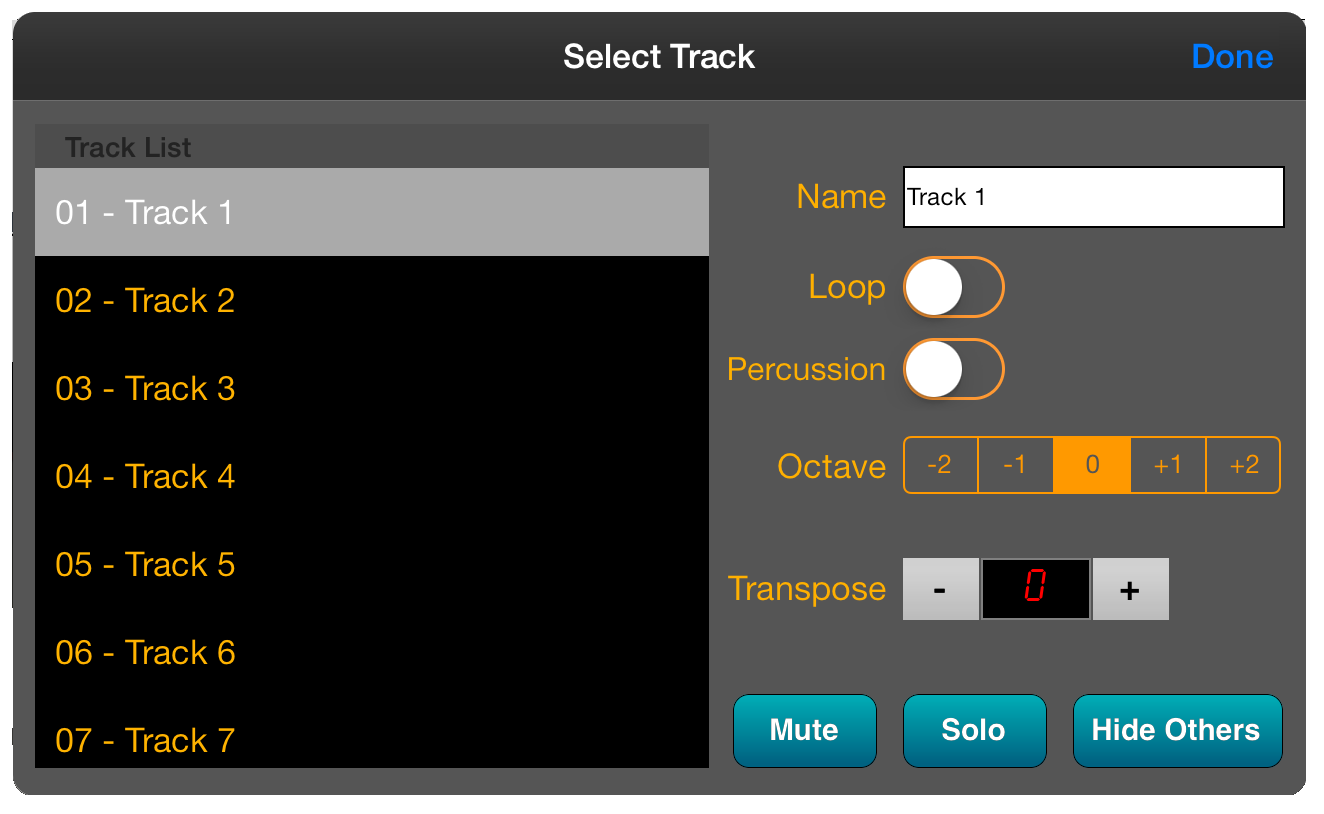
Highlight a track to change the "current" track used for notation and recording. Other options on this screen include:
Each track may be set to a different instrument sound. Each instrument is assigned a "bank" and "program" number.
The Program indicator displays the preset (instrument) that applies to the current Track. Like the Track function, touching the Program Indicator displays a panel that allows the preset to be changed:
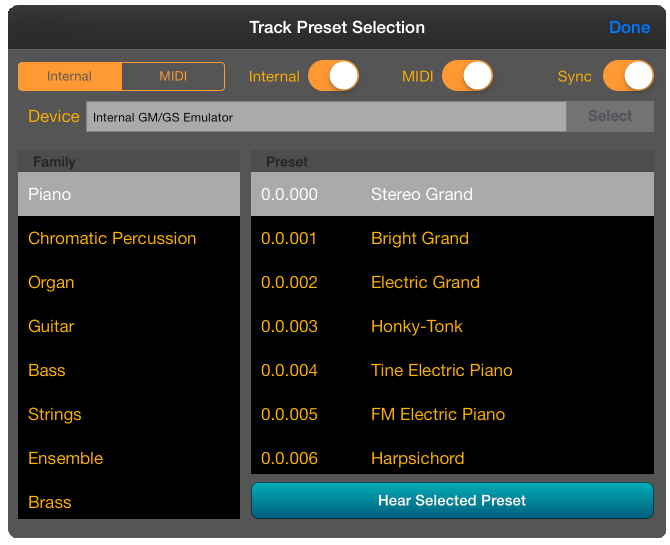
The Preset Selection screen allows presets to be chosen for the internal synthesizer and an external MIDI device. Use the "Internal/MIDI" switch to select whether you are choosing the preset for the internal synth or the external device.
To select a preset, select a Family in the left panel, followed by an instrument in the right panel.
When in MIDI mode, press the Select button next to the Device Name to choose an external device (see Device Manager for more details).
Other options on this screen include:
Each track may be set to a different MIDI Channel and each channel may only control a single instrument at a time.
The Channel Indicator displays the channel being used by the current Track. Touching the Channel Indicator displays a Panel that allows the channel to be changed:
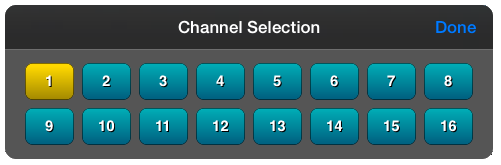
Select the channel to be used and press the Done button to return to the main screen.
Use the PAD button  to
switch between different displays and keyboard modes:
to
switch between different displays and keyboard modes:
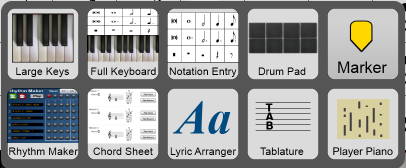
These modes are:
Use the PAD button to
toggle between the Virtual Synth Keyboard and the Virtual Drum Pad:
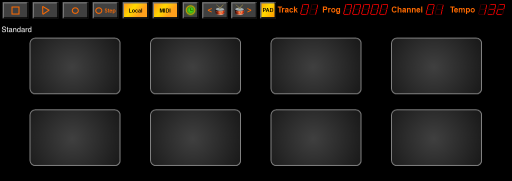
Use the drum pads to play or record percussion. In Pad mode, the
 and
and
 buttons are replaced
by
buttons are replaced
by  and
and
 . These buttons
allow the Drum Kit to be changed. The following Drum Kits are available:
. These buttons
allow the Drum Kit to be changed. The following Drum Kits are available:
Pressing the Pad button
will also reveal the Full Keyboard mode, which displays common symbols for
editing as well as a full size piano keyboard. This is extremely useful
when playing music to see the notes that are being used:
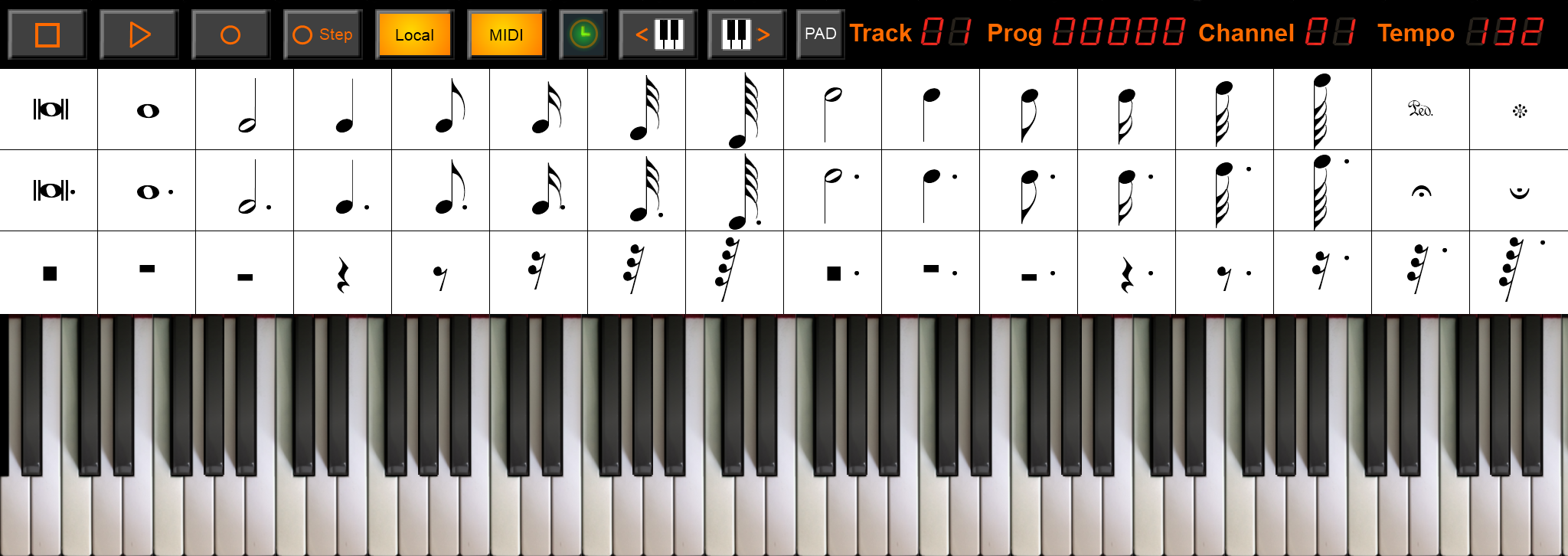
Use the Pad button to
access the Player Piano mode. This replaces the top notation part of the
screen with a simulation of an old-style Player Piano. In this mode, the
notes making up the song are displayed graphically as a set of bars that scroll
as the music plays. This is similar to the Piano Roll view except the
screen scrolls vertically during playback.
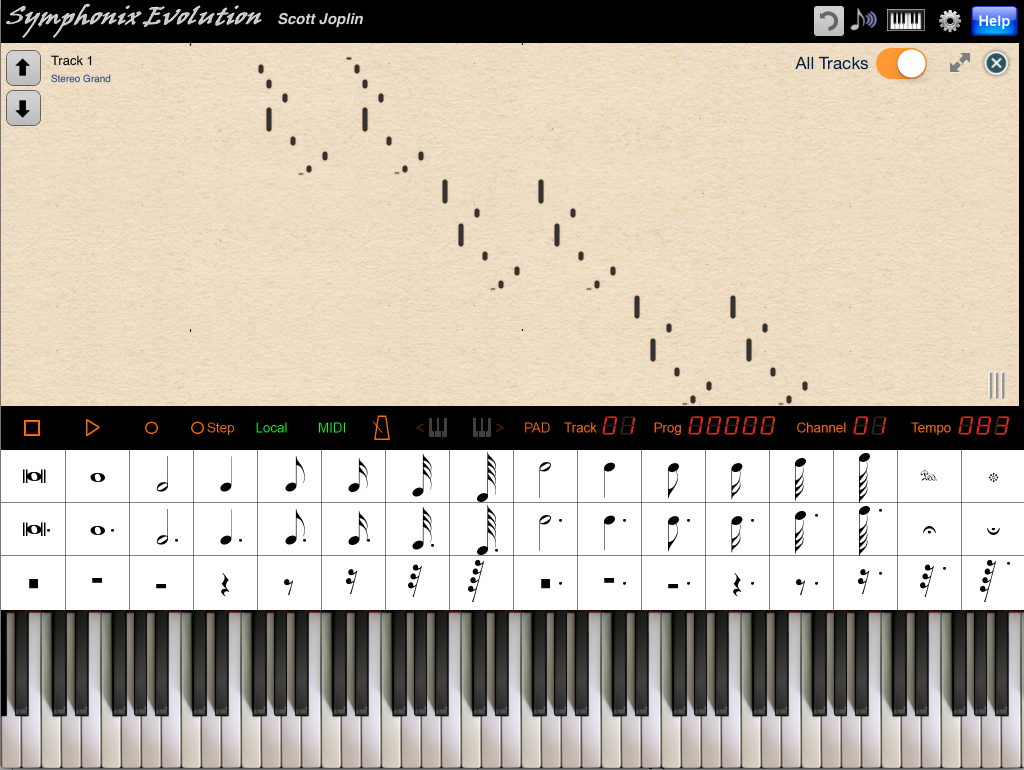
Use the synth button  on the main toolbar to access various low-level synth parameters:
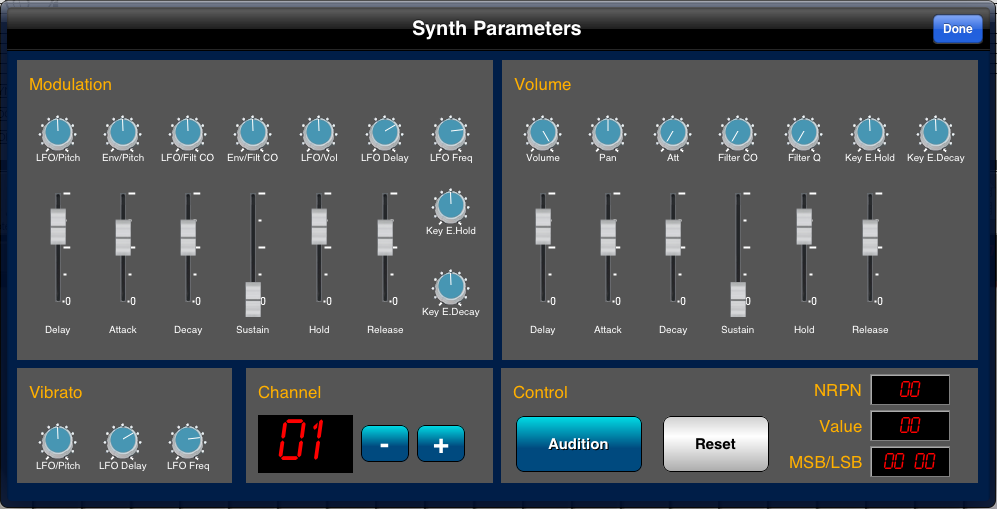
These functions include oscillators for modulation and vibrato, as well as the ADSR envelopes for modulation and volume.
Use the "Audition" button to hear the effect of any changes made to the parameter values, and the "Reset" button to restore the original settings.
Each parameter is able to be set using a non-registered parameter number (NRPN) message and Symphonix Evolution responds to incoming NRPN MIDI messages. The NRPN values are displayed on the screen when parameter values are changed.
Tip: Use the MIDI Controller function to drag the current Synth Parameters into your song
Use the  button on
the Synth Parameters screen to add your own custom MIDI Controller Panel.
You will be asked for the name of the new panel:
button on
the Synth Parameters screen to add your own custom MIDI Controller Panel.
You will be asked for the name of the new panel:
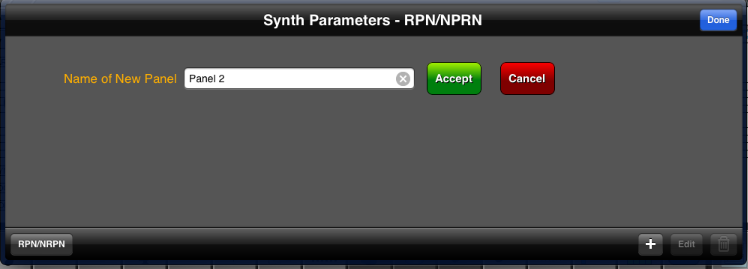
Press the green "Accept" button to add an empty panel in "Edit" mode:
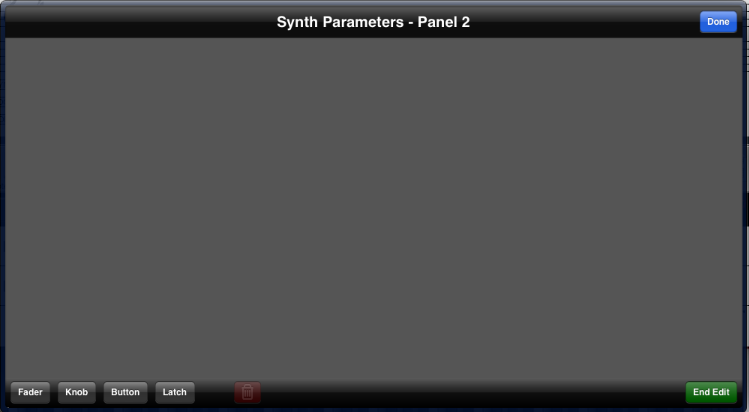
Use the buttons in the lower left corner of the panel's toolbar to add controllers to the panel:

The new controller will appear in a "selected" mode:
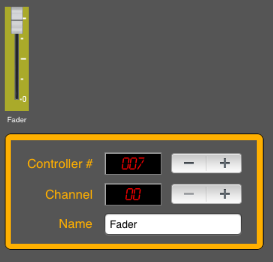
You can move the control anywhere on the panel by dragging the control inside the yellow area. Change the controller number and name as appropriate, and select a MIDI channel if needed. (Selecting a channel of "00" will make the controller work with the channel of the current Track).
Touch outside the control to deselect it.
When you are finished editing the panel, press the
 button in the lower
right corner of the Synth Panel screen.
button in the lower
right corner of the Synth Panel screen.