 button:
Markers
Markers are a powerful tool that allow a point in the song to be given a label. It is then possible to quickly navigate to any Marker, even if the song is playing.
To create a new Marker, first select a single "Note Column" in the desired position.
Touch inside the selected column to open the
Selection Menu, and
press the Marker button:
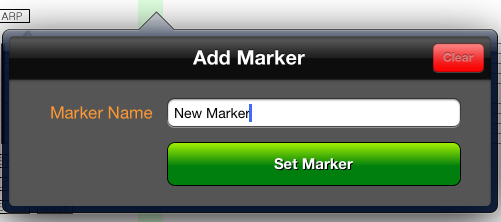
Enter a name for the Marker, and press the "Set Marker" button to save it. The new Marker position will display in orange on the notation screen.
To clear a marker, follow the same steps as if you are adding a marker. When the "Add Marker" window opens press the red "Clear" button to remove the marker.
Alternatively, use the "Marker Pad" (see below) to see a list of Markers including a Delete button.
To use Markers, touch the Pad
 button and choose the "Marker"
option. The lower half of the screen changes to a list of the Markers:
button and choose the "Marker"
option. The lower half of the screen changes to a list of the Markers:
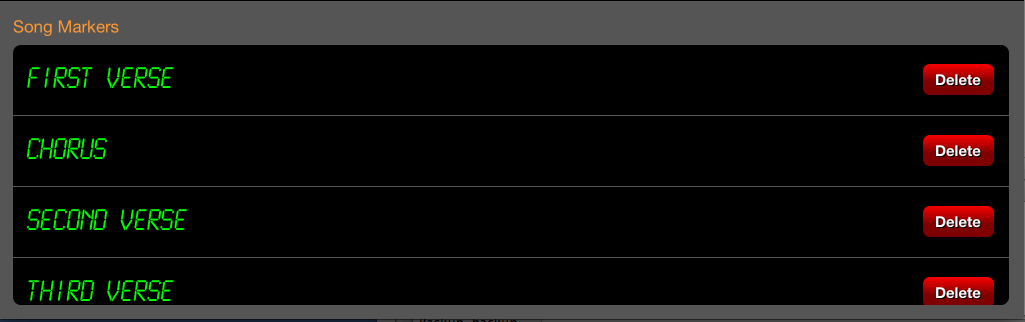
Touch on any marker to navigate directly to that position.
Press the Delete button to remove a marker.