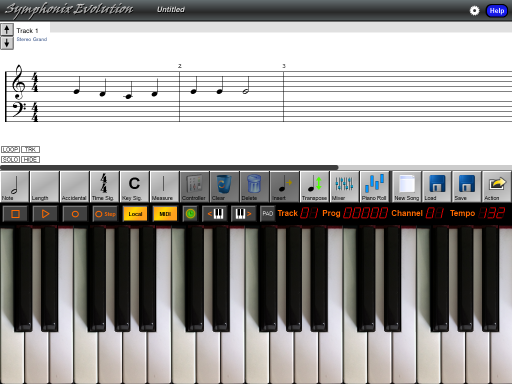
Lyrics
Lyrics may be added to any track as follows:
1. First open the score for which lyrics are to be added
2. Select the column where you want to begin adding lyrics
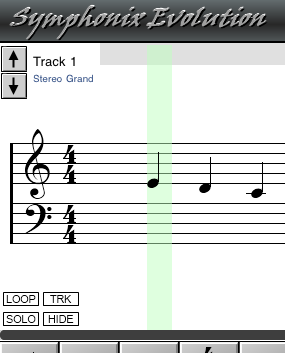
3. Now touch inside the selection to display the Selection menu
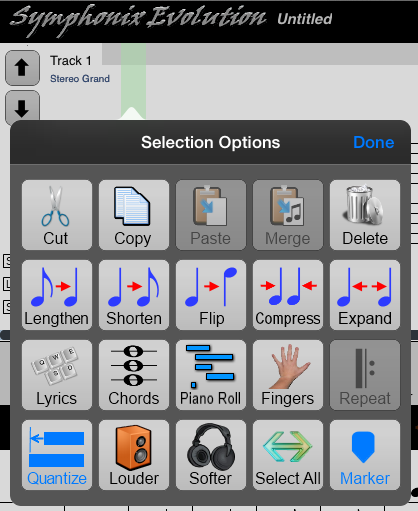
4. Choose the "Lyrics" function. The selection will turn yellow to
indicate you are in Lyric Editing mode, and the keyboard will appear for
entering text
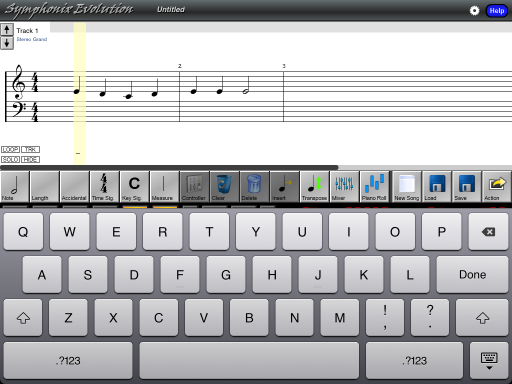
5. Enter the lyrics with the keyboard. Adding a space will
automatically move the entry cursor to the next note. Press the "Done"
button on the keyboard, or dismiss the keyboard, to end Lyric Editing mode
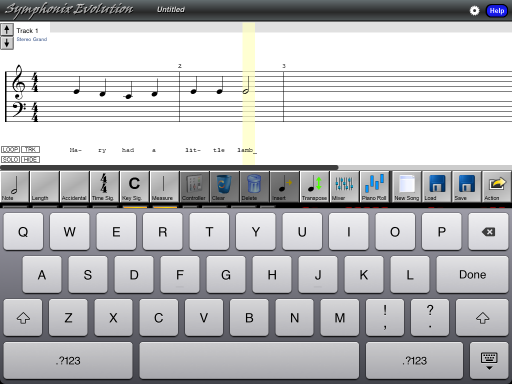
Editing existing lyrics in the same way that new lyrics are added (See above).
When in Lyric Editing mode, change the cursor position by touching a new column at the top of the screen, similar to how you would select it.
The backspace key will automatically move backward to the previous column position, and the space key will move forward to the next note.
The Lyric Pad is an enhanced way to manage your lyrics. First press the
 button to access the "Pad"
selection:
button to access the "Pad"
selection:
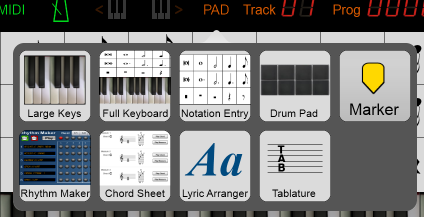
Choose the "Lyric Arranger" option. The lower half of the screen will now display the Lyric Pad:
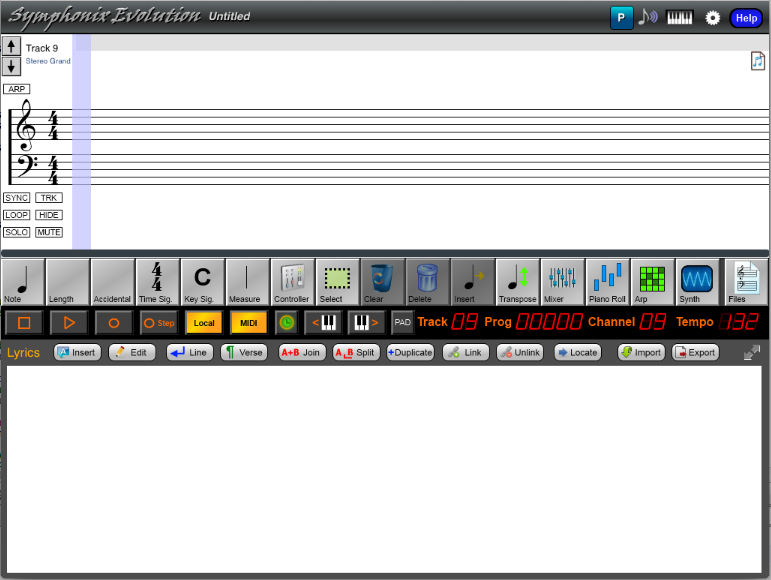
When in Lyric Mode, a purple selection bar is drawn on the music notation to indicate the current position of the lyric editor. The bottom part of the screen is where the actual lyrics are entered.
The Lyric Pad can be expanded to fill the entire screen by tapping the resize icon on the far right of the pad's toolbar.
When the song is playing the Lyric Pad will highlight the words to the song in time with the music.
The buttons on the Lyric Pad are, from left to right:
| Insert | Inserts new text |
| Edit | Changes existing text |
| Line | Adds a new line break |
| Verse | Adds a break between verses |
| Join | Joins multiple words together so that they can be associated with a single note |
| Split | "Un-joins" connected words so that they can be associated with separate notes |
| Duplicate | Copies one or more selected words |
| Link | Associates a word in the Lyric Pad with a note position in the music |
| Unlink | Removes the link between a lyric and its associated music note |
| Locate | Scrolls the music score to a selected lyric |
| Import | Imports lyrics from a text file |
| Export | Exports lyrics to a text file |
Inserting Lyrics with the Lyric Pad
To add lyrics with the Lyric Pad, first press the "Insert" button. A green label will appear in the Lyric pad, and the text entry keyboard will be displayed:
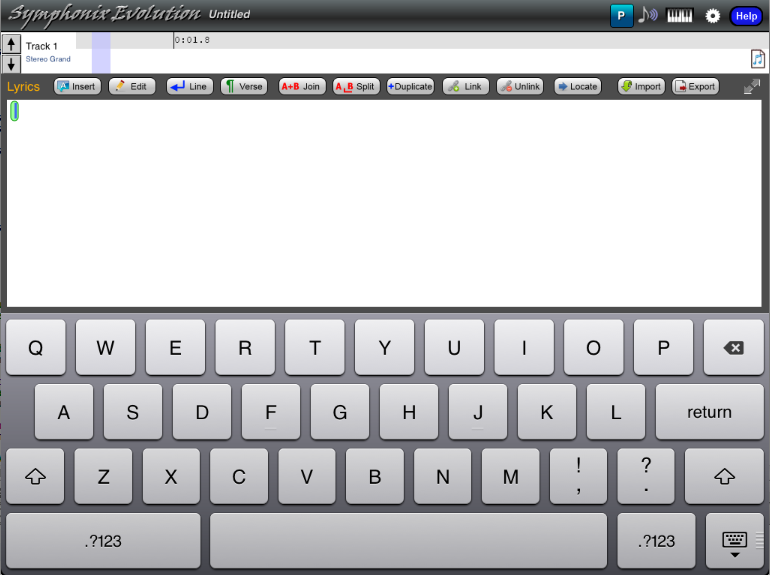
Begin typing the words making up the lyrics. The "current" word is green, and words will appear in red after they have been typed. (Words that are red are not yet linked to notes). Use the "Line" and "Verse" buttons to add new lines or verses where needed:
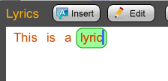
After you have typed in the lyrics, dismiss the text entry keyboard and scroll the music to the place where you would like the lyrics to begin. Tap in the music notation to move the purple positioning cursor so that it is on the first note. In the Lyric Pad, tab on the first word so it is highlighted in green:
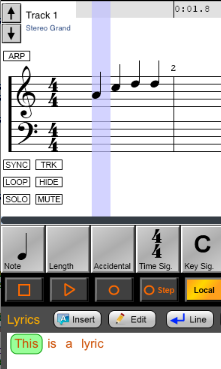
Now press the "Link" button to link the green selected word to the purple note position. The word will change to black to show it is linked, and the cursor will move to the next word and note position. Continue to press the "Link" button until all words are linked.
You have now added lyrics to the song.
Editing Lyrics with the Lyric Pad
Use the Lyric Pad to edit lyrics as follows: