 button and choose the "Chord
Sheet" option. This will open the Chord Sheet screen:
button and choose the "Chord
Sheet" option. This will open the Chord Sheet screen:Chord Sheets
Use the Chord Sheet view to detect and manage the chords in each measure.
To open this view, touch the Pad
button and choose the "Chord
Sheet" option. This will open the Chord Sheet screen:
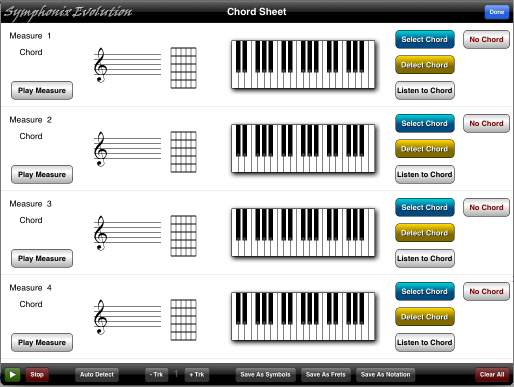
This screen lists each measure along with the chord for that measure. The various controls next to each measure are:
Play Measure - Plays the selected measure in isolation without sounding any of the surrounding bars.
Select Chord - Press this button to manually select a chord for the measure.
Detect Chord - Press this button to analyze the notes in the measure and suggest a chord automatically
Listen to Chord - Hear the chord on its own without the song playing (this button may be used along with the "Play Measure" button to audition the chord and hear how it sounds when accompanying the song).
No Chord - Remove the chord from the measure.
The buttons along the bottom of the screen are:
Play and Stop buttons to start or stop listening to the entire song
Auto Detect - Press this button to analyze the song and provide suggested chords for each measure.
-Trk and +Trk - Change the selected track
Save As Symbols - Save the chords back into the song by placing the chord name above each measure. Note that existing chord names will be replaced by the new names. Fret diagrams and notes will remain unchanged.
Save As Frets - Save the chords back into the song by placing a chord name and fret diagram above each measure. Existing fret diagrams will be replaced but chord names and notation will remain unchanged.
Save As Notation - Save the chords back into the song by notating into the score. This change will result in new notes that affect the playback of the song. Please note that once notated, chords cannot be replaced without manually removing the notes making up each chord.
Clear All - Remove all chord names or fret diagrams from the chord list. This button resets all measures to "No Chord" and will not take effect unless the "Save As Symbols" or "Save A Frets" buttons are pressed to save the new chords back into the song.