Rhythm Maker
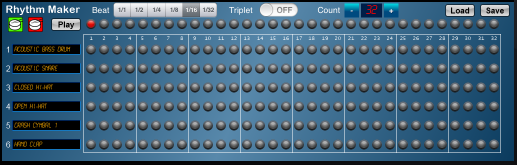
Use the Rhythm Maker to create your own drum patterns for playing along with or adding to a score.
Use the PAD button to open the Rhythm Maker, which appears after the Symbol Pad.
Up to six percussion instruments can be used in a rhythm.
Each rhythm may contain up to 32 steps (use the COUNT buttons to change the number of steps)
Use the BEAT selection to set the duration of each step. For example, setting this to "1/16" makes each dot on the display represent a 16th note. Triplet (swing) timing can be used by activating the TRIPET switch.
Press the PLAY button to start the rhythm generator and hear your drum pattern. Touch a step next to one of the six instruments in order to play it at that step. Playback will continue until the PLAY button is pressed again.
Use the LOAD and SAVE buttons to store your custom rhythms for later. Using this feature it is possible to build up a library of patterns.
Selecting Percussion Instruments
Touch the name of a percussion instrument to select a different sound:
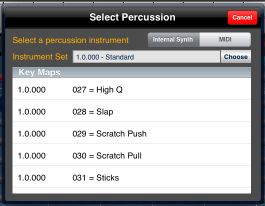
Any instrument in the Drum Kit family with at least one Percussion Map can be used as a rhythm source. Select whether the sound is "Internal" or "External" (MIDI), and choose an Instrument Set and percussion sound.
Note that selecting an Internal sound will automatically select the same instrument as the external device. However, selecting an External sound will not override the internal selection. In this way it is possible to have a different sound used for Internal and External playback.
Use the  button to drag the rhythm into the song Notation screen. When the song is
played, the rhythm will start when the first
is encountered.
button to drag the rhythm into the song Notation screen. When the song is
played, the rhythm will start when the first
is encountered.
Drag a  symbol into the score to halt rhythm playback at the desired position.
Multiple rhythms can be used in the same song.