Device Manager
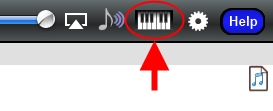
The Device Manager allows Patch Maps for external MIDI devices to be created or edited. Open the Device Manager by touching the piano keyboard icon located in the top right corner of the screen:
The main Device Manager screen contains everything you need to create MIDI patch maps.
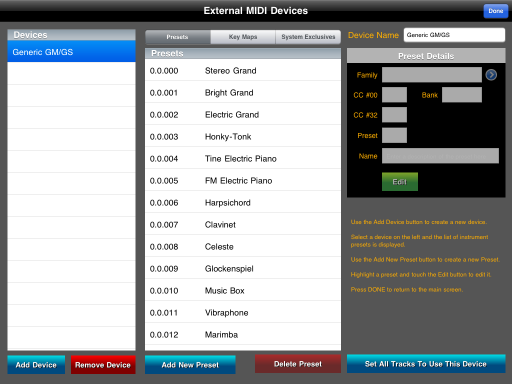
The left panel is a list of the devices for which patch maps have been defined
The middle panel is a list of the presets for a device selected in the left panel
The right panel contains details about the currently selected preset.
Press the "Add Device" button to add a new patch map. Symphonix Evolution will prompt for a device name, which is the name that will be used in the Preset Selection screen when using the device.
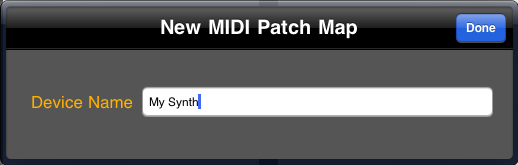
Enter a device name and press Done, and the new device will appear in the Device List.
To add a Preset, first select a device in the left panel, then press the "Add New Preset" button underneath the middle preset list. The panel on the right will now change to allow the preset details to be entered:
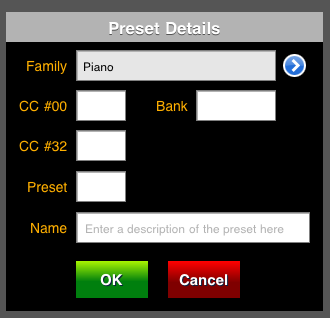
Family is a general description of the instrument type, using the General MIDI groupings as a base. Touch the blue arrow to the right of the Family to select the instrument type that best matches the new preset.
CC #00 is the value that will be sent to MIDI Controller #0 (Bank MSB) to select the preset.
CC #32 is the value that will be sent to MIDI Controller #32 (Bank LSB) to select the preset.
Bank combines the MSB and LSB to show the full bank number. This value automatically updates when the MSB or LSB is changed.
Preset is the MIDI preset number (from 0 to 127) sent to select the preset. For example, a preset of 6 selects the General MIDI Harpsichord
Name is the descriptive name of the preset as it will appear in the Preset Selection screen as the Instrument Name
Press the OK button to save the preset.
To edit a Preset:
Select the device in the left panel
Select a preset in the middle panel
The preset details in the right-hand panel will now be enabled for editing.
Update the details as required and press the OK button to save them
To rename a device:
Select the device in the left panel
Touch the device name located above the preset details on the right panel
Edit the device name as required
After a device has been created, it may be desirable to set it as the default "external device" for all tracks. Do this by pressing the "Set All Tracks To Use This Device" button located beneath the preset details.
If the device is to be used as the default for all new songs, go to the Advanced Settings screen and press the "Save Track Setup as Default" button.
Percussion Key Maps make it possible to map percussion notes to each line of the staff, and define the notation symbols used for each line. This is useful for handling drum kits where each MIDI note will have a different sound.
To set up percussion for a device, first touch the "Key Maps" tab at the top of the main display. The center list will change to display the symbols that have currently been defined, and the panel on the right allows individual mappings to be created:
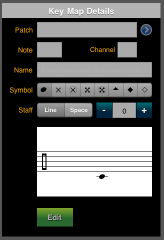
Each map contains the following details:
Patch - The preset (program change) of the instrument to be used.
Note - The MIDI note number (60 = middle C) of the percussion sound
Channel - The MIDI channel that must be used for the sound to play (normally this will be 10)
Name - A name for the percussion sound
Symbol - The "note head" that will be used to notate the sound on the percussion staff
Staff - The line or space in which the symbol will appear when notated. Each line on the staff is numbered, with 1 being the lowest line, and 5 the highest.
See the Percussion Clef for more information about how to use Percussion Key Maps.
Each device can have a set of System Exclusive messages, that make it possible to access special functions. Symphonix Evolution contains a SysEx librarian so that these messages can be easily selected and added to songs.
Use the SysEx tab of the Device Manager to define a set of MIDI SysEx messages for the device. In this mode, the panel on the right side of the screen changes to a hexadecimal keypad for easy data entry:
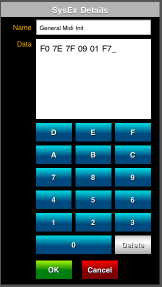
Once a set of messages has been defined, it can be added to a song using the Controller button on the main screen.