Advanced Settings
Use the Settings button
 in the top right
corner of the screen to access Advanced Settings:
in the top right
corner of the screen to access Advanced Settings:
Synth
Synth settings control the virtual synthesizer
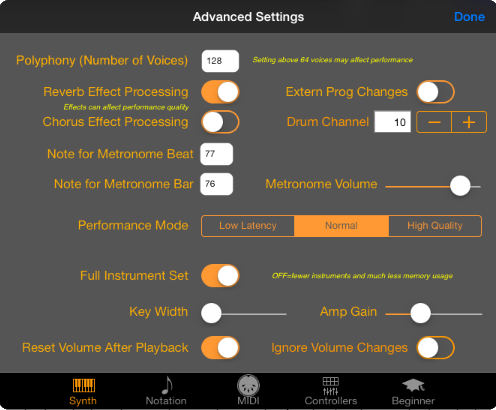
Available options are:
- Polyphony - Determines the number of concurrent "voices" that can be
played by the Virtual Synth Keyboard, which is a wavetable synthesizer
engine. It is recommended that this be kept at the default setting of
64 for the iPad 2 and iPad 3, and 128 for iPad 4 or later. Reducing the number of voices will reduce the CPU requirement of
the virtual synth, but may result in notes being cut off or not played
should the number of available voices run out. Increasing this
value too high will result in excessive CPU load, which will manifest as
crackling or chopping sounds. In the worst case it may result in the
application failing due to increased memory requirements.
- Reverb Effect Processing - Turn this option on to enable the virtual synth engine to process reverb effects. This can enhance the sound
quality at the expense of CPU. Note that excessive CPU can reduce
quality, especially on the iPad 2, so it is recommended this option only be active if the Polyphony
setting is lowered.
- Chorus Effect Processing - Turn this option on to enable the virtual synth engine to process chorus effects. This can enhance the sound
quality at the expense of CPU. Note that excessive CPU can reduce
quality, so it is recommended this option only be active if the Polyphony
setting is lowered.
- Extern Prog Changes -
Allows the app to monitor incoming MIDI messages and automatically change
the instrument Preset for the current track if a Program Change message is
received.
- Drum Channel
- Specifies the track that will
be used for percussion. Normally this should be left to the default
setting of 10 for compatibility with the General MIDI standard. Set
the track to 0 to disable percussion altogether.
- Metronome Beat and Bar - Use these options to set the
percussion notes (on MIDI channel 10) used for the metronome, if the
defaults are not suitable for your MIDI keyboard.
- Metronome Volume
- Sets the note velocity used by the metronome function
- Performance Mode - Use the Performance Mode to
balance the CPU and memory used by the virtual synthesizer:
- Low Latency - This mode uses the least CPU and memory and can be
used to ensure that complicated music plays as close to "real time" as
possible. However, some clicks and pops will be noticeable in this
mode as Symphonix emphasizes performance over quality (this was the
default mode in Version 1.0).
- Normal - This mode is the best compromise between latency and
quality. Most clicking and popping is eliminated, although a
performance lag may be noticed on complicated pieces of music. If
lagging is experienced then change the mode back to "Low Latency".
- High Quality - Ensures the highest quality output with virtually no
clicking or popping but at the increased risk of latency, which can
affect note timing. Recommended for relatively simple or slow
pieces of music only.
- Full Instrument Set
- Turn this option on to use the
full set of instruments available in Symphonix Evolution and turn this
option off to use a limited subset with lower quality instrument samples.
The full instrument set occupies approximately 80MB of RAM compared to
approximately 25MB for the subset. It is highly recommended that this
option be turned OFF when using printing or an external MIDI device.
- Key Width
- Use the slider control to change the width of
the keys on the Virtual Synthesizer Keyboard.
- Reset Volume
After Playback - During
song playback it is possible to adjust the volume control for each track,
but Symphonix Evolution normally resets the volume after playback has
finished (this is to preserve MIDI volume control messages that were
originally saved in the song). Use this setting to prevent the volume
from being reset so that any changes are kept as the new track default
volume the next time the song is played.
- Amplifier Gain-
Use this slider to increase the volume gain of the internal Synth.
Please note that this may result in audible distortion due to digital
clipping depending on the instruments and MIDI key velocities that are used.
Generally good results can be achieved by setting the control to between 0
and 75%.
- Ignore Volume Changes
- Use this option if you would
like MIDI Volume Control messages to be ignored while a song is playing.
This prevents the song from changing the mixer volume that was set by the
user.
Notation
Use the Notation tab to control the way in which music is scored
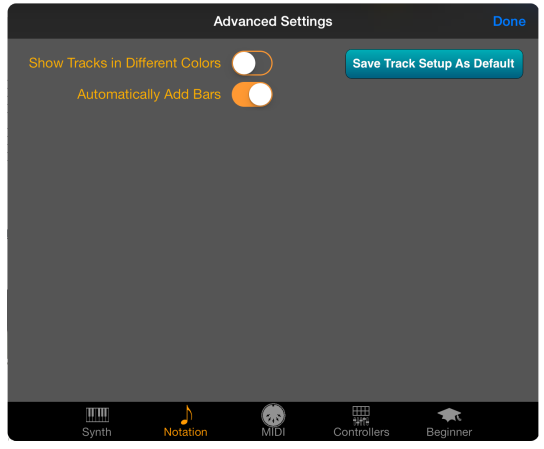
- Show Tracks in Different Colors
- This setting displays each track in a
different color and is useful for education or to quickly see which
instrument is playing different parts of the music.
- Automatically Add
Bars - When entering notes
into the score, this setting will automatically add a new bar (measure)
symbol when the number of beats in the bar matches the current time
signature. Note that this setting will be applied only when adding
notes to the end of a track.
- Save Track
Setup as Default - Press
this button to save the current track preset assignments (including external
devices and channel assignments) as the default for new songs.
MIDI
The MIDI tab controls the way in which Symphonix Evolution connects to MIDI
devices
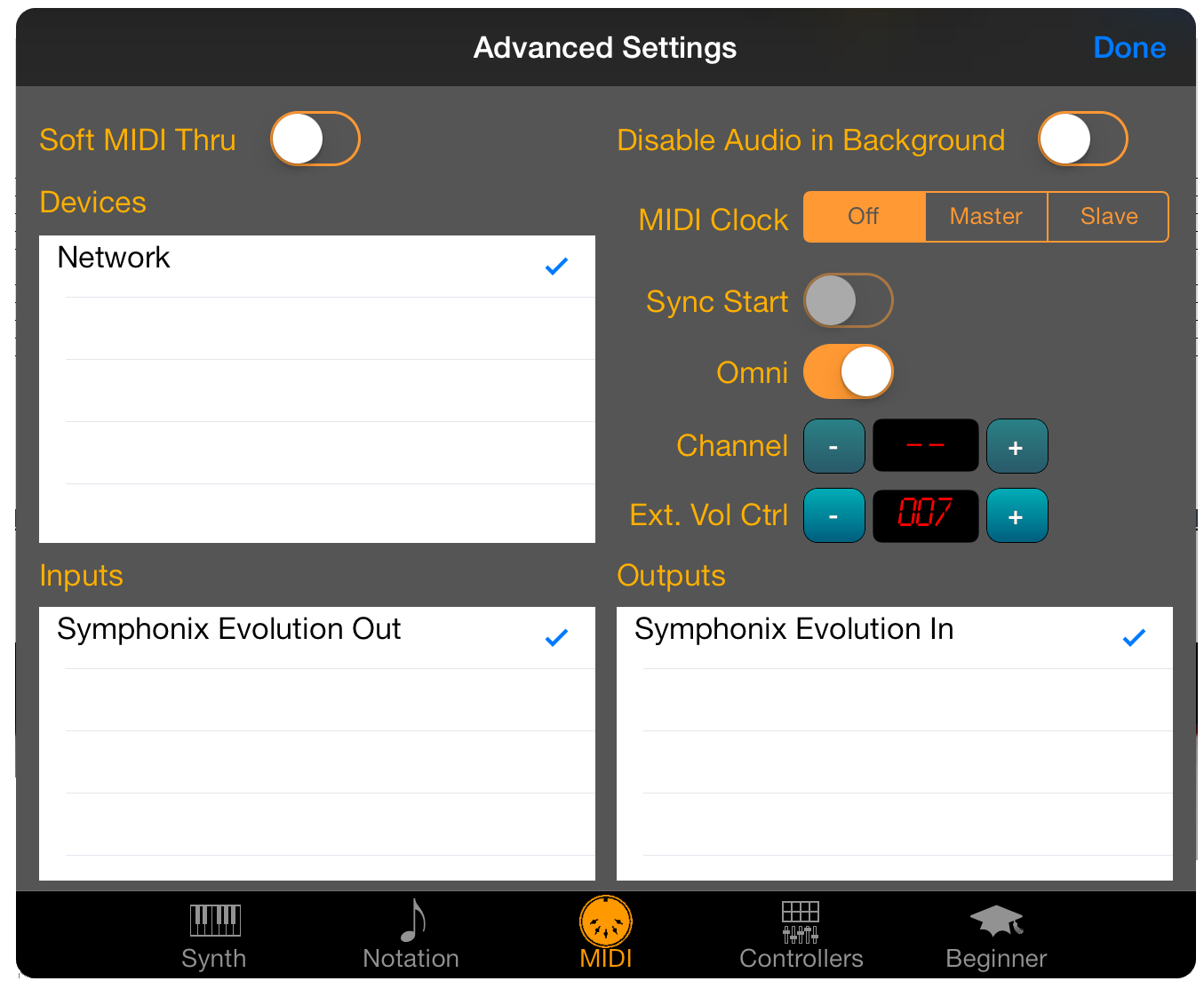
- Soft MIDI Thru - Use this
function to route MIDI input through to the selected output devices.
This is useful when the input and output are different devices, for example
to use an external MIDI controller to drive a sound source
- Disable Audio in
Background - By
default, Symphonix Evolution will continue to play audio when moved to the
background. Turn this option on to disable background audio and only
send MIDI data, which can reduce power consumption
- Devices
- This is a list of detected MIDI hardware (including devices that are not
currently connected). Use the checkboxes to indicate which devices
will be used for playback or recording.
- Inputs
- This is a list of currently active MIDI inputs. Use the checkboxes
to enable or disable an input.
- Outputs
- This is a list of currently active MIDI outputs. Use the checkboxes
to enable or disable an output.
- MIDI Clock
- MIDI Clock signals allow different MIDI devices to synchronize their
tempo. There are three possible values for this setting:
- OFF - No MIDI clock data is sent, and incoming MIDI clock data is
ignored
- Master - Symphonix Evolution sends MIDI clock data during song
playback
- Slave - Symphonix Evolution uses an external MIDI device for tempo
- Sync Start
- If the MIDI Clock mode is set to 'Slave' use the Sync Start function to
synchronize song playback with an external device. When the Play
button is pressed, Symphonix Evolution will pause playback until a MIDI
Clock 'Start' signal is received. Playback will continue until either
the song ends or a MIDI Clock 'Stop' signal is received.
- Omni
- Determines whether Symphonix Evolution should respond to all incoming MIDI
channels, or just a single channel. If Omni mode is off then any
channel is listened to. If Omni mode is on then Symphonix Evolution
will only respond to incoming MIDI messages on the specified channel.
Controllers
Use the Controllers tab to allow external MIDI devices to control Symphonix
Evolution. See the MIDI Control page
for more information.
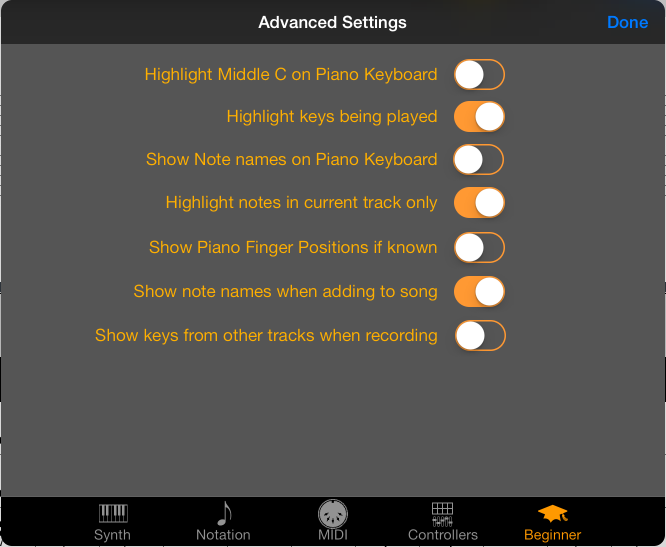
Beginner
Use the Beginner tab to access features that can assist with learning to play
music