Recording Music
Symphonix Evolution can record MIDI keyboard events and convert them to musical notation. (Please note that results may vary depending on how accurately the music is played).
There are two record modes: Step Time and Real Time.
Step Time recording is a convenient way to enter music where the same note symbol is used repeatedly. It uses the music note symbol and duration specified for manual editing, but the MIDI keyboard to determine the note value and accidental.
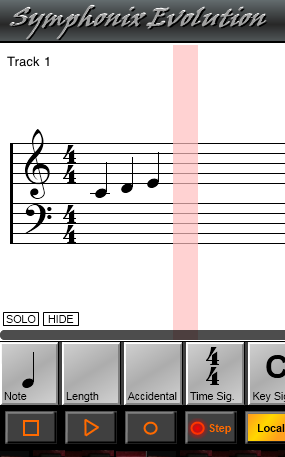
When in Step Time mode, a cursor is drawn in red to indicate the next insertion point where new notes will appear:
Use the Virtual Synth Keyboard or a connected MIDI keyboard to enter notes.
The insertion point can be set using the same procedure as selecting a note column.
In Real Time Recording mode, Symphonix acts like a recording studio (Sequencer) and stores an actual performance, and then converts it to musical notation. This process is similar to how MIDI files are loaded, except that the notes are played directly into Symphonix using either the virtual keyboard or an external MIDI device.
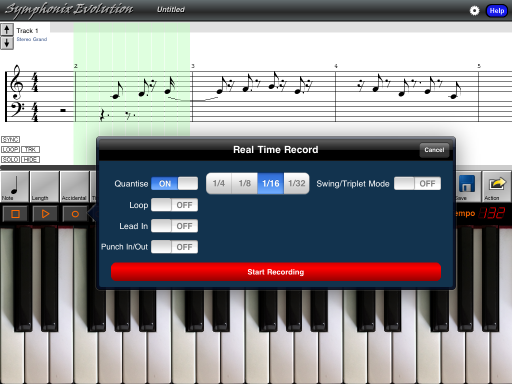
Touch the Record button
 to open the Recording
Options panel:
to open the Recording
Options panel:
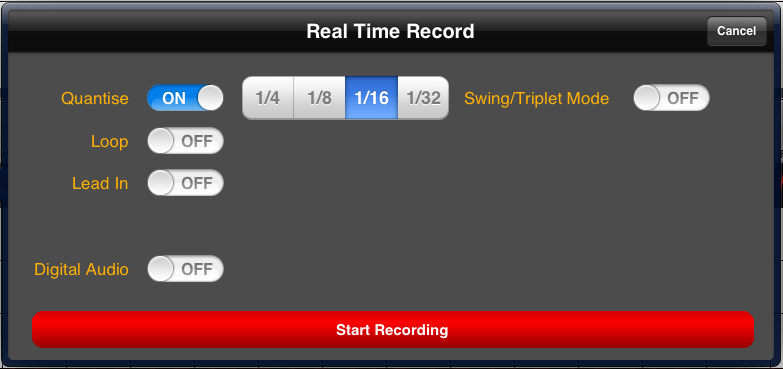
Choose an appropriate Quantization level and touch the Start Recording button to begin recording your performance.
While recording is active, the Notation panel is replaced by a display showing the number of measures and notes that have been recorded so far, as well as a track timer that indicates the recording time in minutes and seconds.
Touch the  button to
finish recording. Symphonix will automatically convert your performance
into music notation.
button to
finish recording. Symphonix will automatically convert your performance
into music notation.
Notes:
Start Recording from Anywhere in the Song
To start recording from any song position, first select the position by marking a single "note column". Now press the Record button as normal. Recording will commence from the selected position.
Loop Recording Mode is a special type of Real Time Recording. In Loop Recording Mode, Symphonix will record only the specified number of bars but will loop the music over and over again, just as if the recording is onto a closed loop of tape. In this way, each successive loop may be used to build up more and more complicated music.
Loop Recording Mode is ideal for the creation of percussion tracks, especially when combined with the Track Loop playback mode.
To use Loop Recording Mode, activate the "Loop" option on the Real Time Record screen:
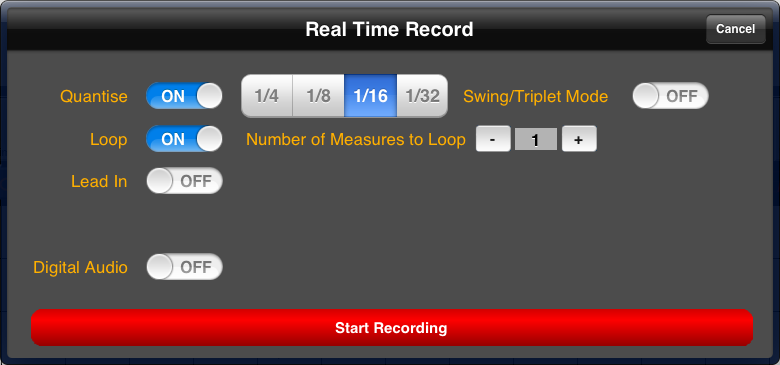
Use the "-" and "+" buttons to change the number of Measures to Loop and then record as normal. With each pass through the loop you will hear what was recorded in the previous loop, and have the ability to play new notes over the top of the previous recording.
When you have finished, Symphonix Evolution will score the specified number of measures.
Use the "Lead In" option to have the system count in the specified number of measures before recording.
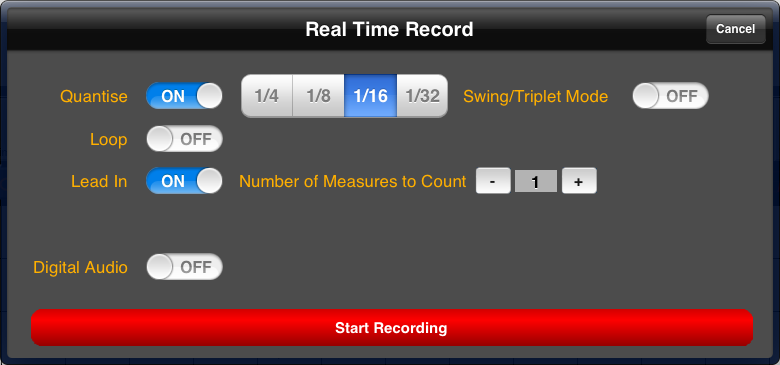
The lead in count will play using the metronome, regardless of whether the metronome is enabled.
The Selection function can be used in conjunction with Real Time Recording to implement "Punch In/Out". Using Punch In/Out it is possible to re-record over an existing track while only updating a small section and keeping the original recording for the remainder of the track. This is useful for correcting errors made during the original performance on a "bar by bar" basis without having to re-record the entire track.
To use Punch In/Out: