 button
on the main toolbar to access the File Management functions, including:
button
on the main toolbar to access the File Management functions, including:Loading and Saving
Use the File button
on the main toolbar to access the File Management functions, including:
Symphonix supports its own file format (.SXE) and standard MIDI files (.MID).
Use the File button
on the main toolbar to open the File Management menu, followed by the "Load"
button to open an
existing file. The Open File (Load) screen will appear:
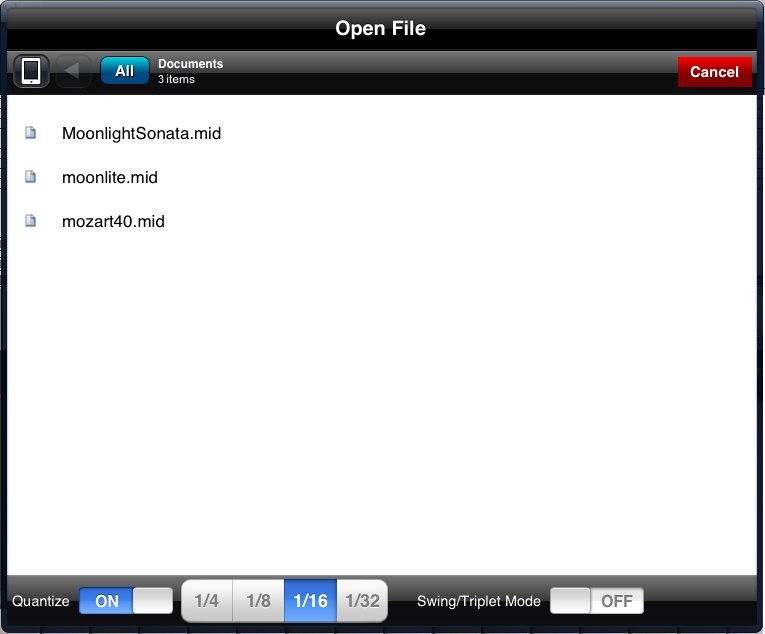
To load a file, scroll the list until it is highlighted and then touch the filename. Note that Quantize options must be selected prior to selecting a file.
To delete a file, swipe sideways to reveal a "delete" button.
Touch the iPad icon in the top left corner of the File Browser to switch between "local" and "Dropbox" files.
If Symphonix Evolution is not linked to Dropbox, the following screen will appear:

Touch the "Link to Dropbox Now" button. If the Dropbox App has been installed, it will open and authenticate your logon password, before returning to Symphonix Evolution.
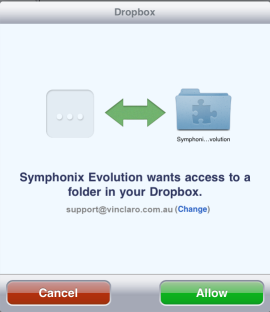
Once the Dropbox account details have been provided, Dropbox will appear just like any other folder on the iPad.
Touch the "All" button repeatedly to filter the file list between Symphonix Evolution (SXE), Standard MIDI Format (MID) or All Files. Alternatively, type text into the "Filter" bar above the file list to only show files containing the text you type.
When music is played from a keyboard or other musical instrument, subtle errors in timing may occur that make it difficult to convert the music into notation. Use Quantizing to adjust the start time and duration of notes so that they align with the specified note. For example, a Quantize value of "1/16" will ensure that notes are always aligned on 16th note boundaries.
Note that quantizing can change the way in which the music sounds, and will often result in a lack of expression making the music sound like it was played by a computer. It is recommended that quantizing only be used when Notation is desired. If the music is being loaded for a performance and notation is not required, turn off Quantization so that Symphonix plays the file exactly as it was originally played.
Swing/Triplet Mode is useful when triplet notes are played in the space of normal 4/4 time, which is a property of many swing/jazz styles. If Swing mode is not applied, these triplet notes will be adjusted to the nearest Quantization note, resulting in an incorrect score. You may like to experiment with using the Swing/Triplet mode to add "swing" to an existing performance where none was originally - this can yield interesting results!
Symphonix is able to save in its own format (.SXE) or Standard MIDI Files
(Type 1) that can be played by most multimedia applications. Use the File
button on the main
toolbar to open the File Management menu, followed by the Save button to open the "Save
File" panel:
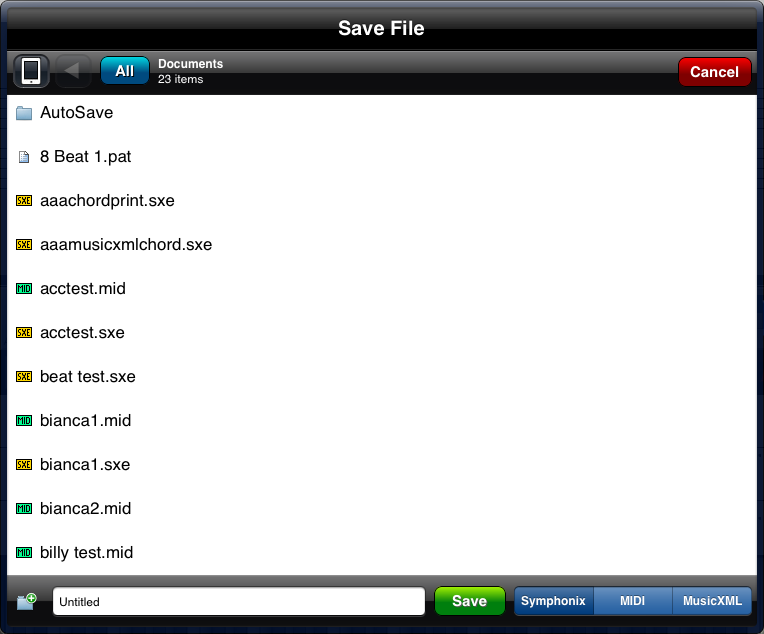
Touch an existing file name, or type a new file name in the text field at the bottom of the window. Choose the file format by touching the "Symphonix", "MIDI" or "MusicXML" option as required, and then touch the Save button to save the file.
Symphonix SXE files are saved with all notation and formatting, while MIDI files will only include the notes played as a sequence of MIDI events. It is recommended that the SXE format be used unless there is a need to export the song for use in other third-party applications.
Use the MusicXML format to create an XML file that can be read by other music notation applications.
Use the "Add Folder" button to the left of the filename field to create a new folder.
Some operations in Symphonix Evolution are memory intensive and may cause the iPad to run out of memory, forcing the application to close. This can be very inconvenient if there are unsaved changes to the song being edited.
Symphonix Evolution now automatically saves your work before the following operations are performed:
If the iPad does force Symphonix Evolution to close during these operations, restart the App and load the song file named "!autosave.sxe" to recover your work.
Note: In some cases you may need to completely restart the iPad before Symphonix Evolution will restart if the available memory is low.
A song can be shared to any iOS 7 or later device that supports Apple's AirDrop. Use the File button on the main toolbar to open the File Management menu, and press the Share button to send the current song via AirDrop. Please note that songs are currently shared in MIDI format only.
Use the File button
on the main toolbar to open the File Management menu and access buttons for sending a song via Mail in either Symphonix or Standard MIDI format:
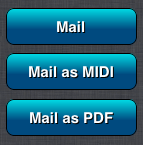
Select the desired option. The Mail application will open, allowing the recipient, subject and message text to be entered.
Copying Files to (or from) a Computer
Symphonix Evolution supports iTunes® File Sharing, making it easy to copy your music from the iPad® to your computer, or from your computer to the iPad®.
First, start iTunes® and connect your iPad®. The iPad® will be visible in the "Devices" panel on the left side of the screen:
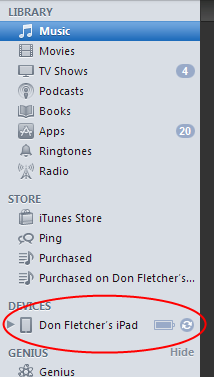
Select the iPad® so it is highlighted. Now click on the "Apps" tab at the top of the main panel to display the list of Apps installed on the device:
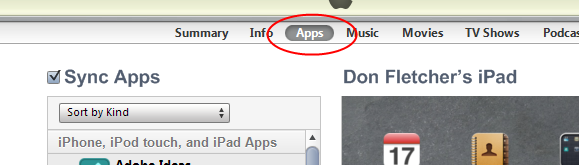
Now scroll down to the bottom of the page until you get to a section labelled "File Sharing". Select Symphonix Evolution in the list of Apps and then drag files into the Documents list:
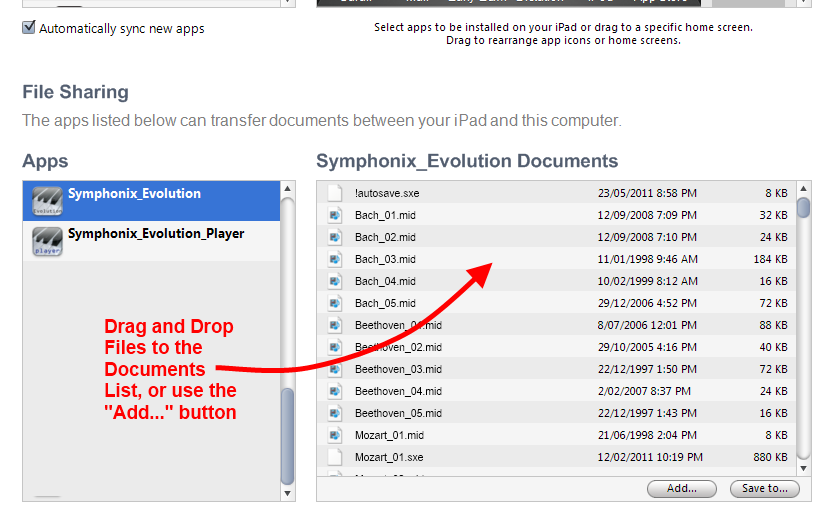
The files will be copied immediately to your device. Drag a file out of this list and onto a folder in your computer to copy a file from the iPad® back to your computer.
